6 min readUpdated July 28, 2026
Eight Git Commands for Everyday Work
- Developer Tools
I have used Git from the command line for most of my career. Graphical clients can be useful, especially when visualizing history or resolving a complicated conflict, but the command line gives every Git operation a stable name.
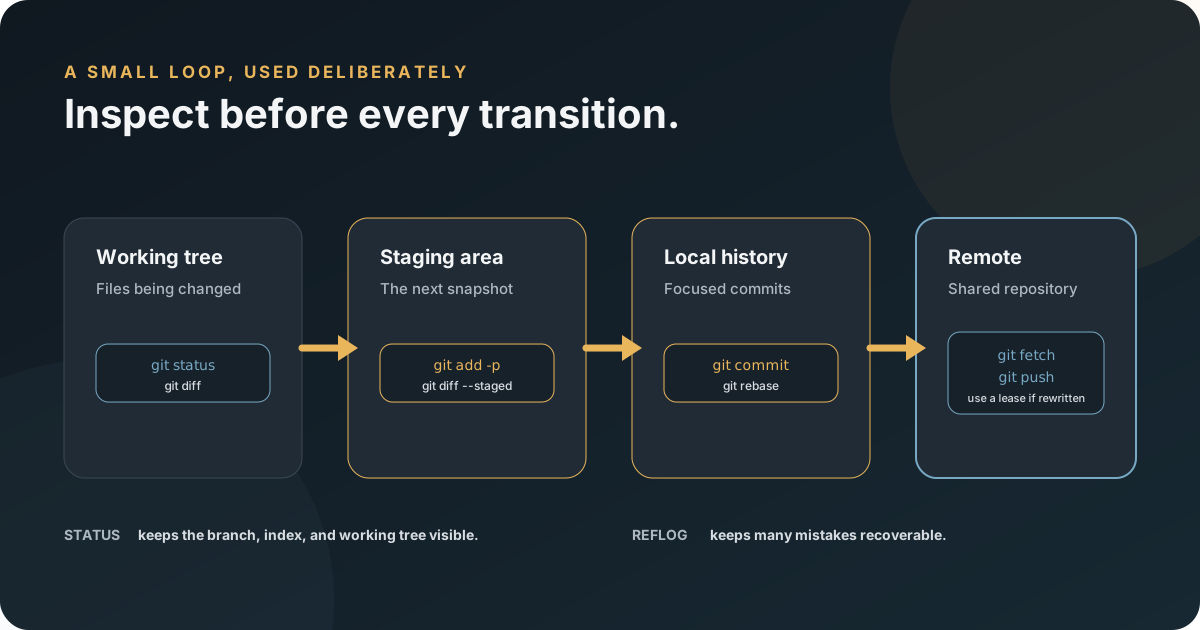
You do not need to memorize Git’s entire interface. Most daily work is one small loop:
- Inspect the repository.
- Create or switch to a branch.
- Make a focused change.
- Review and stage it.
- Commit it.
- Synchronize with the remote.
- Push it for review.
These eight commands cover that loop. The title is less dramatic than the original version of this article because Git always has one more command waiting for you. The useful goal is a safe foundation, not a magic list.
Before the eight: confirm Git is available
Open a terminal and run:
git --versionIf Git is not installed, use the instructions at git-scm.com/downloads.
1. git status
Run git status before and after any operation you do not fully understand.
git statusIt shows:
- Your current branch.
- Changes staged for the next commit.
- Changes made but not staged.
- New files Git is not tracking.
- Whether a merge or rebase is in progress.
Git has three relevant views of your work: the last commit, the staging area, and the working tree. git status tells you how they differ.
2. git clone
Clone creates a local repository from an existing remote:
git clone git@github.com:organization/project.git
cd project
The default remote is usually named origin. Confirm rather than assume:
git remote -v3. git switch
Create and switch to a new branch:
git switch -c describe-the-changeSwitch to an existing local branch:
git switch mainSwitch back to the previous branch:
git switch -Older Git instructions use git checkout for both branch switching and file restoration. git switch gives branch movement its own name, which makes intent clearer. Git will normally refuse to switch when doing so would overwrite local changes.
4. git add
git add moves selected changes into the staging area for the next commit.
Stage a specific file:
git add src/orders/OrderService.csInteractively choose parts of files:
git add -pStage all changes beneath the current directory:
git add .git add . is convenient, but inspect first. It can stage generated files, debugging output, unrelated edits, and secrets. A .gitignore helps with predictable generated content, but it is not a substitute for reviewing the diff.
Review what is staged:
git diff --staged5. git commit
A commit records the staged snapshot:
git commit -m "Explain authorization token boundaries"A useful commit is small enough to review and complete enough to make sense. Its message should describe the change or outcome, not the activity:
Good: Reject tokens with the wrong audience
Weak: Make auth changes
If git commit says there is nothing to commit, check git status. You may have forgotten to stage the files, or there may be no changes.
6. git pull
git pull fetches remote changes and then integrates them into the current branch.
For a shared branch such as main:
git switch main
git pull --ff-only
--ff-only updates the branch only when Git can move it forward without creating a merge commit. If the local and remote branches diverged, Git stops and asks you to make that choice explicitly.
To download remote state without integrating anything:
git fetch originFetch is worth knowing even though it is outside the eight. It lets you inspect origin/main before changing your branch.
7. git rebase
Rebase replays your branch’s commits on a new base:
git fetch origin
git switch describe-the-change
git rebase origin/main
This is useful for bringing a private feature branch up to date without adding a merge commit.
If Git reports a conflict:
- Open each conflicted file and choose the correct result.
- Stage the resolved files with
git add. - Continue:
git rebase --continueIf the rebase is going badly, return to the state from before it began:
git rebase --abortDo not rebase a shared branch other people have based work on. Rebase rewrites commit identities.
Interactive rebase is a separate history-editing tool:
git rebase -i HEAD~3Use it to reorder, combine, or edit your own recent commits. It is not required merely to update a feature branch.
8. git push
The first push of a branch can establish its upstream:
git push -u origin describe-the-changeAfter that:
git pushIf you rebased a branch that you previously pushed, the remote history no longer matches. Prefer:
git push --force-with-lease--force-with-lease refuses to overwrite the remote branch when it has moved somewhere you have not seen. Plain --force removes that protection and can erase someone else’s work.
Never force-push a shared protected branch unless the team has explicitly designed a recovery procedure around it.
The everyday workflow
Starting new work:
git switch main
git pull --ff-only
git switch -c explain-token-validation
Reviewing and committing:
git status
git diff
git add -p
git diff --staged
git commit -m "Explain token validation requirements"
Publishing:
git push -u origin explain-token-validationUpdating the branch before review:
git fetch origin
git rebase origin/main
git push --force-with-lease
Recovery commands worth knowing
These are not part of the eight, but they make experimentation less frightening.
Discard unstaged changes to one file:
git restore path/to/fileRemove a file from the staging area without discarding the edit:
git restore --staged path/to/fileCreate a new commit that reverses a published commit:
git revert <commit>Find previous branch tips and other recent positions:
git reflogBe cautious with git reset --hard, git clean, and plain force-pushes. They can destroy uncommitted work or rewrite reachable history. When recovery is the goal, inspect git status and git reflog before reaching for a destructive command.
Command summary
| Command | Purpose |
|---|---|
git status |
Inspect the branch, staging area, and working tree |
git clone <url> |
Create a local repository from a remote |
git switch -c <branch> |
Create and switch to a branch |
git add <path> |
Stage selected changes |
git commit -m "<message>" |
Record the staged snapshot |
git pull --ff-only |
Safely advance a shared local branch |
git rebase origin/main |
Replay a private branch on the current remote base |
git push -u origin <branch> |
Publish a branch and establish its upstream |
The complete command reference lives in the official Git documentation. Learn the eight-command loop first, keep git status close, and add specialized commands only when a real workflow requires them.